Managing Microsoft promotional discrepancies in the Sync Tool
Moderate Upgrade
The Microsoft Sync Tool now surfaces promotion discrepancies between the marketplace and Microsoft Partner Center and lets Marketplace Managers apply promotional pricing to the marketplace subscription from the Sync Tool.
When a subscription has promotional pricing in Partner Center but not on the marketplace, it can appear as a reconciliation gap even though the customer received the discount on the Microsoft side. Previously, promotion was not among the subscription attributes that could be corrected through the Sync Tool. With this release, eligible promotion mismatches are visible in the discrepancy workflow and can be resolved in the same place as other sync actions.
Subscriptions affected by this gap are now identified with the PROMOTION_NOT_ON_MARKETPLACE discrepancy type. Filter for this type on the Subscriptions with Discrepancies tab in the Sync Tool. The same type also appears in the Microsoft Discrepancy Report, so you can review promotion gaps across all Microsoft subscriptions outside the Sync Tool UI.
Platform backend support also aligns the marketplace subscription with the Microsoft promotion when a correction is applied.
📝 Note: Some subscriptions may have manual discounts that were added as a workaround for promotional pricing (for example, where the partner chose not to enable the Promo feature and instead applied a discount to approximate the promotional price). Applying the Microsoft promotion on top of an existing discount would result in double-discounting.
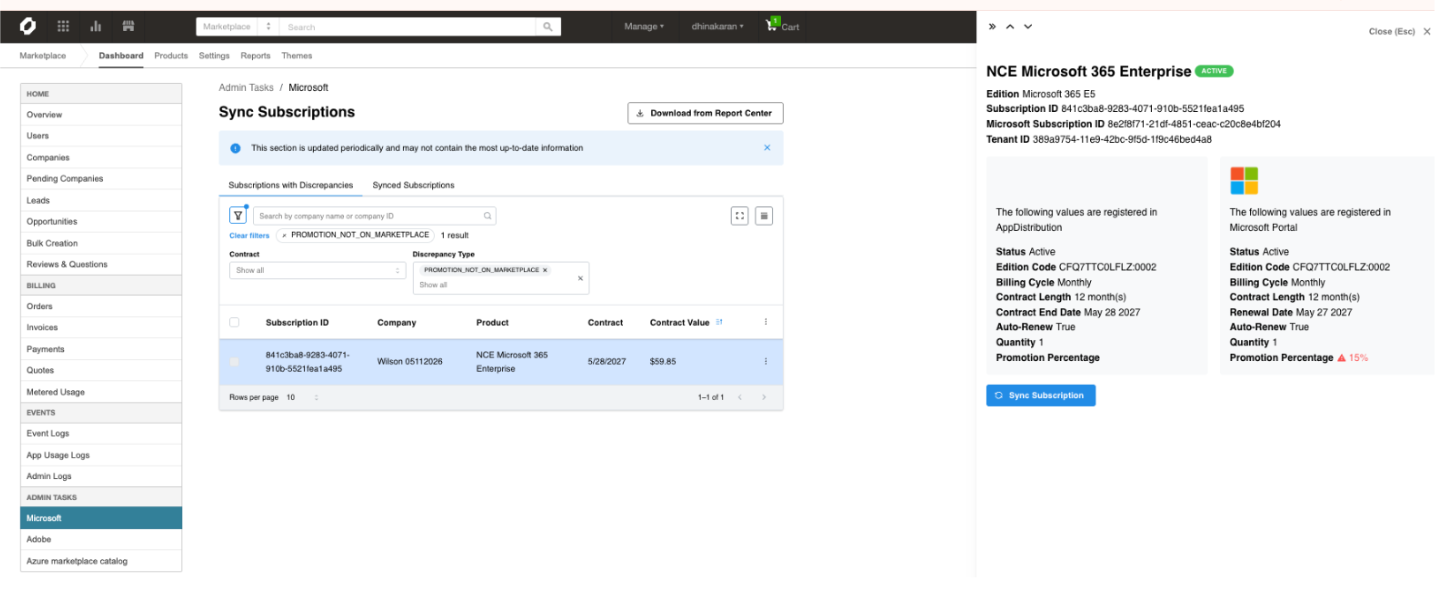
To apply a promotion discrepancy (individual),
- Go to Manage > Marketplace | Admin Tasks > Microsoft to open the Sync Subscriptions page.
- On the Subscriptions with Discrepancies tab, use the Discrepancy type filter and select PROMOTION_NOT_ON_MARKETPLACE.
- Select a subscription to review Partner Center and marketplace values in the detail panel.
- Click Sync Subscription. The confirmation step surfaces any existing discounts on the subscription so you can check for workaround overlap before you proceed.
- Type CONFIRM and click Accept to apply the promotional pricing to the marketplace subscription.
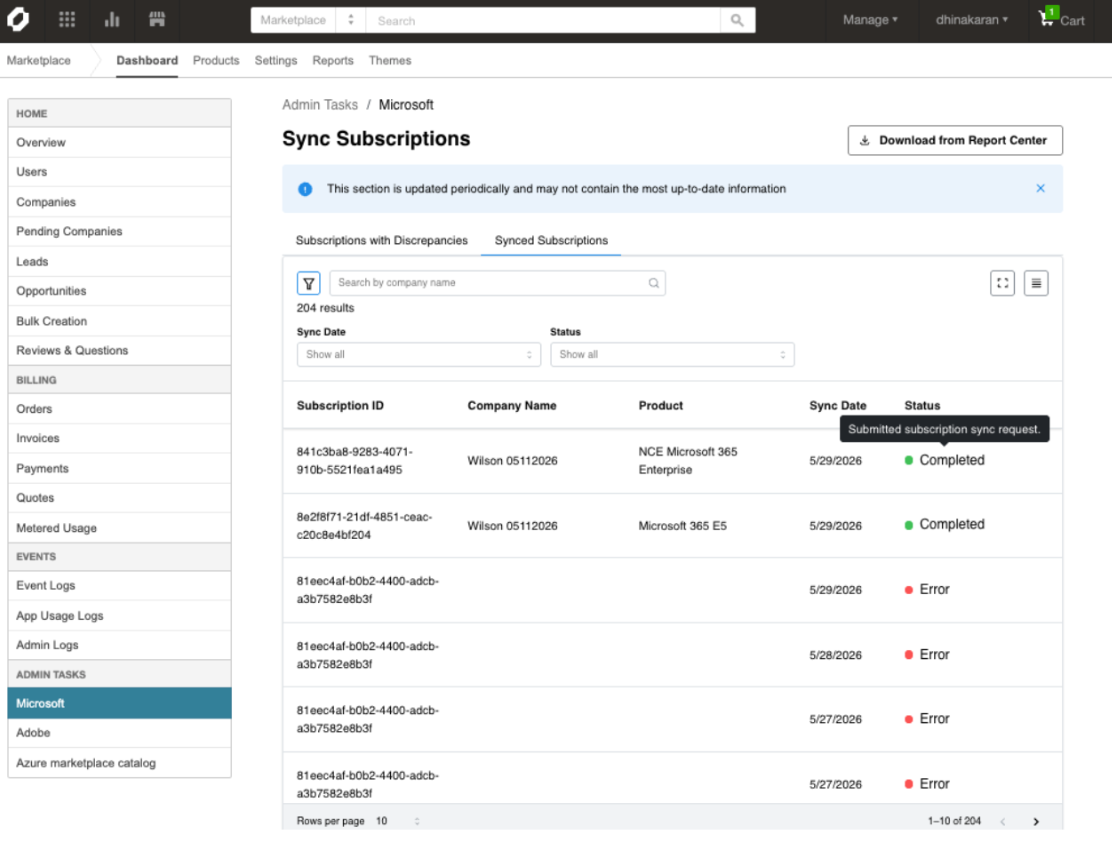
Bulk apply promotions
Promotions can be applied in bulk. Review the selected subscriptions beforehand and exclude any with existing workaround discounts. If included, those subscriptions will receive both the existing discount and the new promotion.
Addendum (July 2026): Promotion pricing on subscription import
When importing a subscription that exists in Partner Center but not on the marketplace, promotional pricing from Partner Center is now applied at import time when an active Microsoft promotion applies. This removes the two-step workaround of importing at standard price and applying the promotion separately.
| Scenario | Discrepancy type | Sync Tool action |
|---|---|---|
| Promo on Partner Center, not on marketplace | PROMOTION_NOT_ON_MARKETPLACE | Apply promotion — unchanged |
| Promo percentage differs | PROMOTION_PERCENTAGE_MISMATCH | Apply promotion — unchanged |
| Subscription on Partner Center only, Partner Center has promo | SUBSCRIPTION_NOT_ON_MARKETPLACE_MISMATCH | Import — promotional pricing at import — new |
| Promo on marketplace, not on Partner Center | PROMOTION_NOT_ON_MICROSOFT | Detect only — unchanged |
For subscriptions missing from the marketplace, use the existing Import action in the Sync Tool when the discrepancy type is SUBSCRIPTION_NOT_ON_MARKETPLACE_MISMATCH. No new UI is introduced. Import now carries Partner Center promotional pricing when eligible.
Feature enablement
This feature is not enabled by default. Contact your AppDirect technical representative to request it.
Setting enablement
The Microsoft Sync Subscription setting must be enabled under Manage > Marketplace > Settings | Sync Settings.
Documentation
Refer to the following:
Was this page helpful?
Tell us more…
Help us improve our content. Responses are anonymous.
Thanks
We appreciate your feedback!